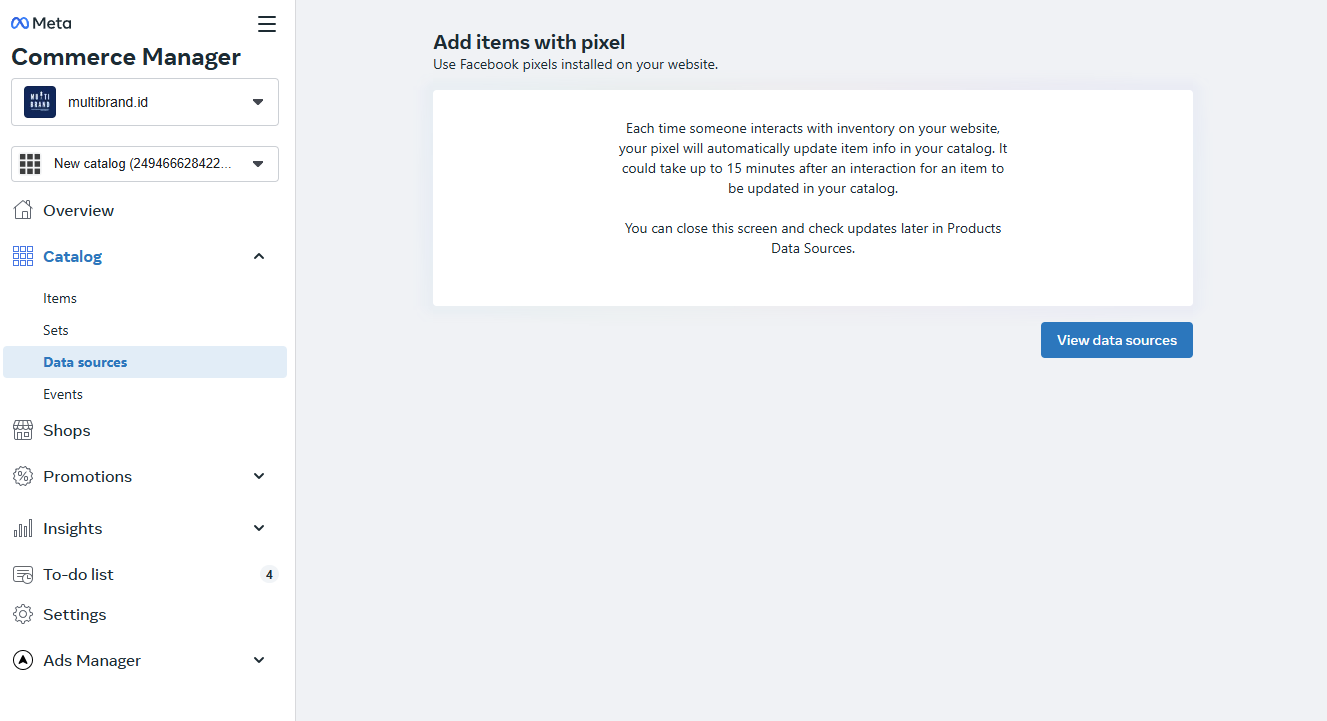
You can connect and update your Instagram shopping items (catalog) by connecting your Take App website to the Instagram shop configuration
Create your Instagram and Facebook Shop
-
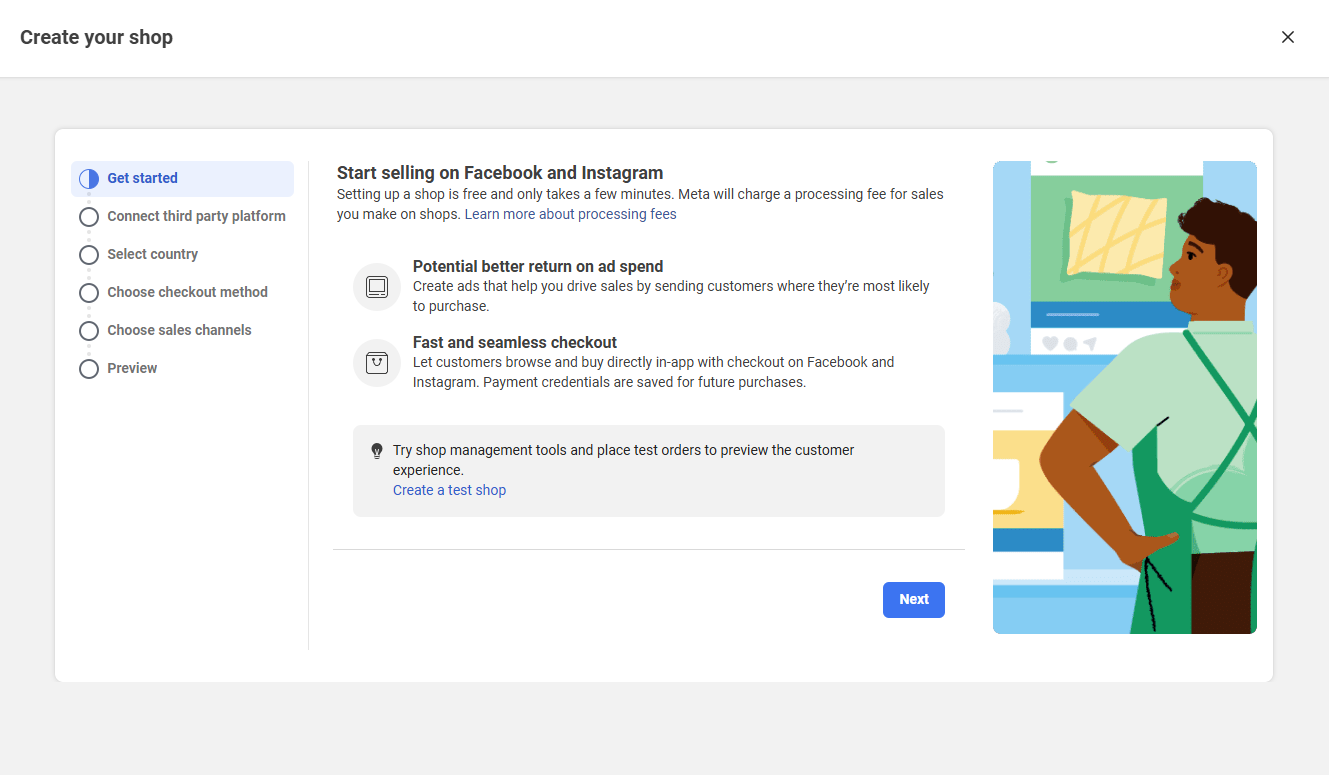
Get started to create your Instagram/Facebook shop by going to this onboarding link
-
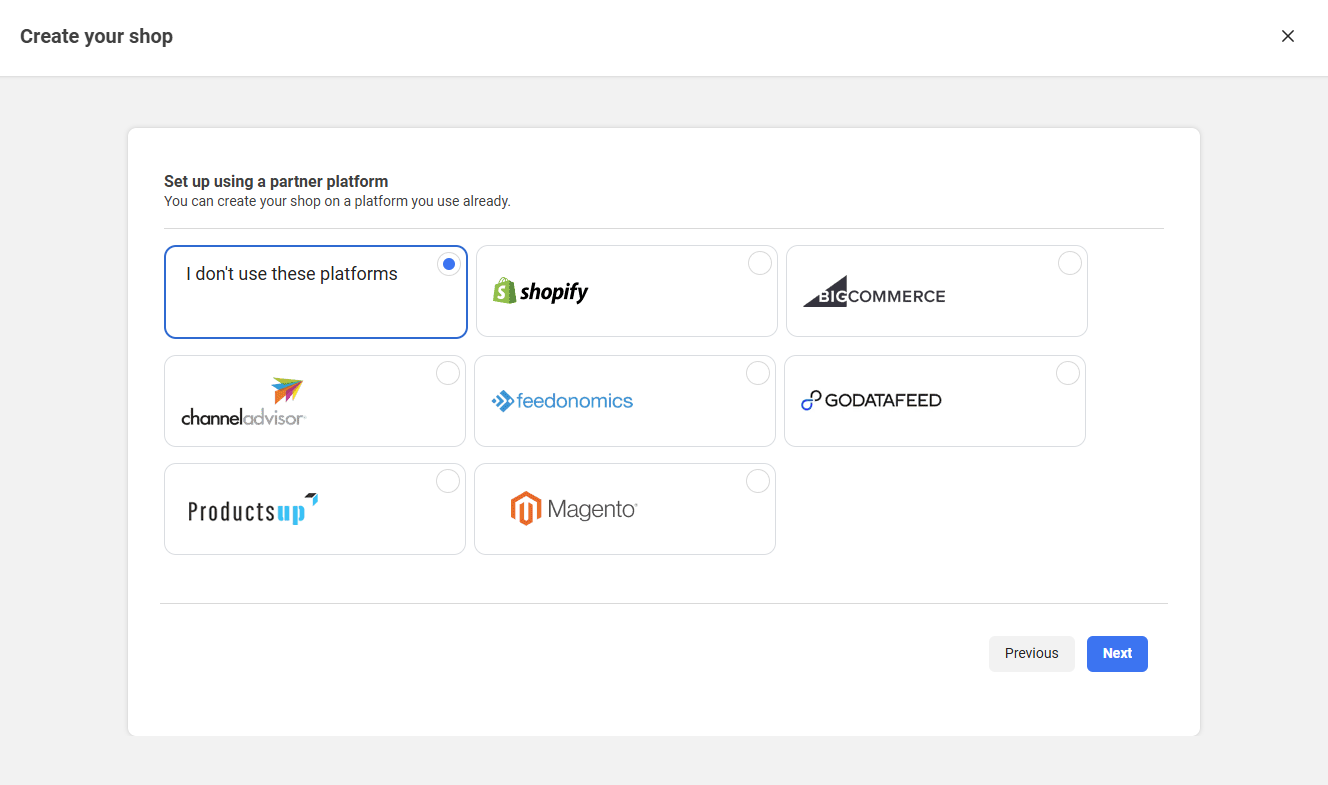
On setting up a partner platform, choose "I don't use these platforms."
-
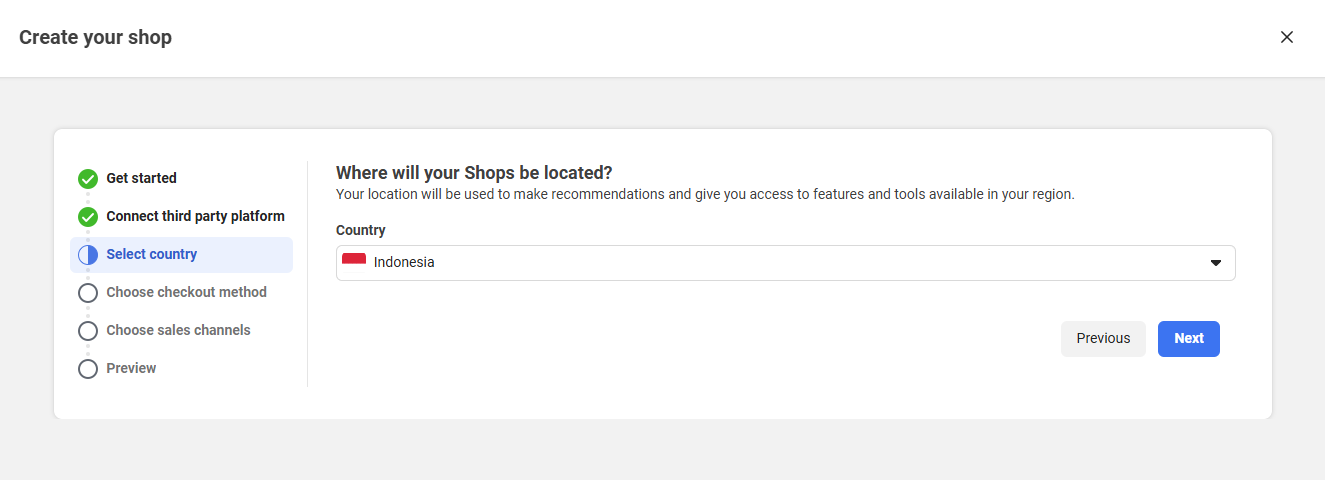
Choose the country where the shop will be located (some countries will not be eligible to create a shop)
-
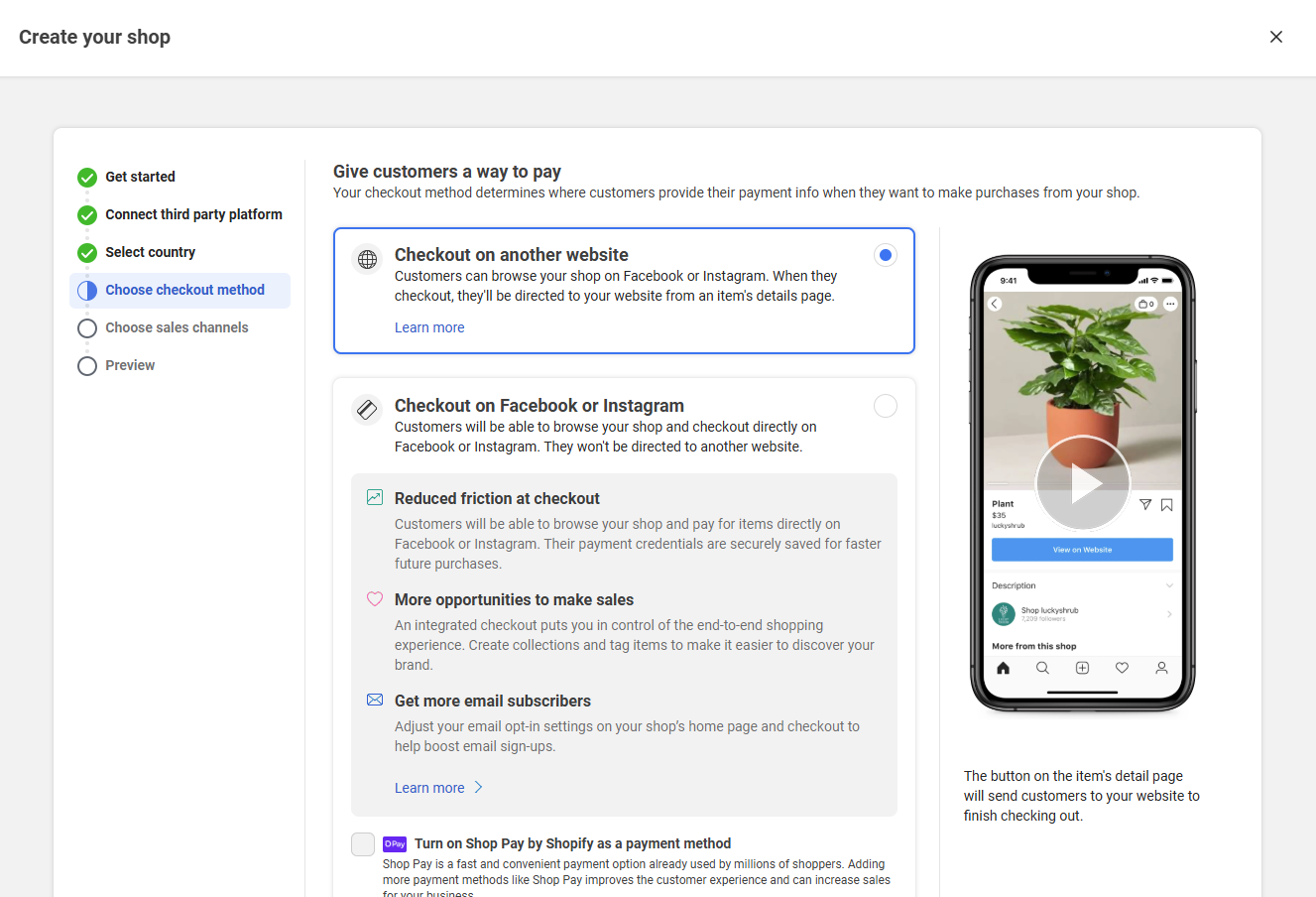
Make sure to choose "Checkout on another website" to connect to your Take App store
-
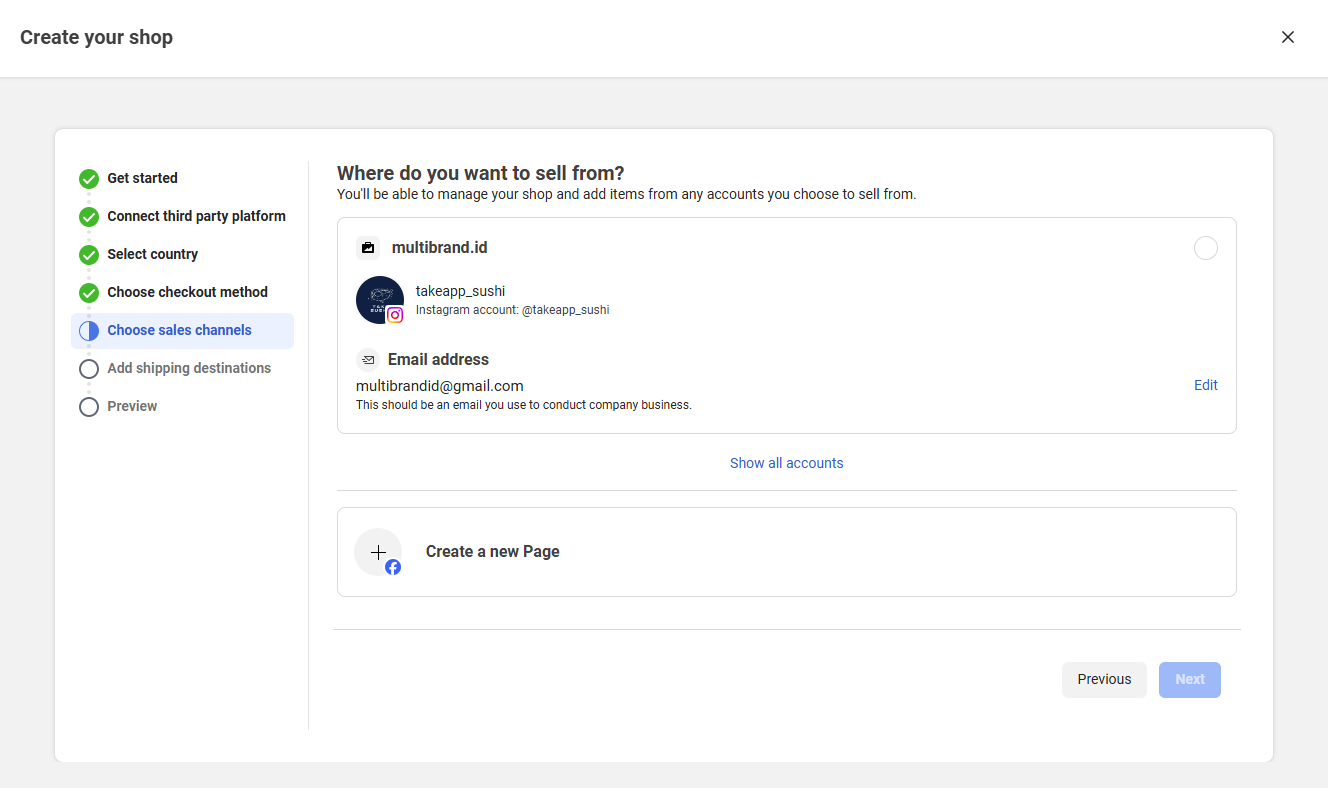
Choose your Instagram account or Facebook page where you will establish the shop
-
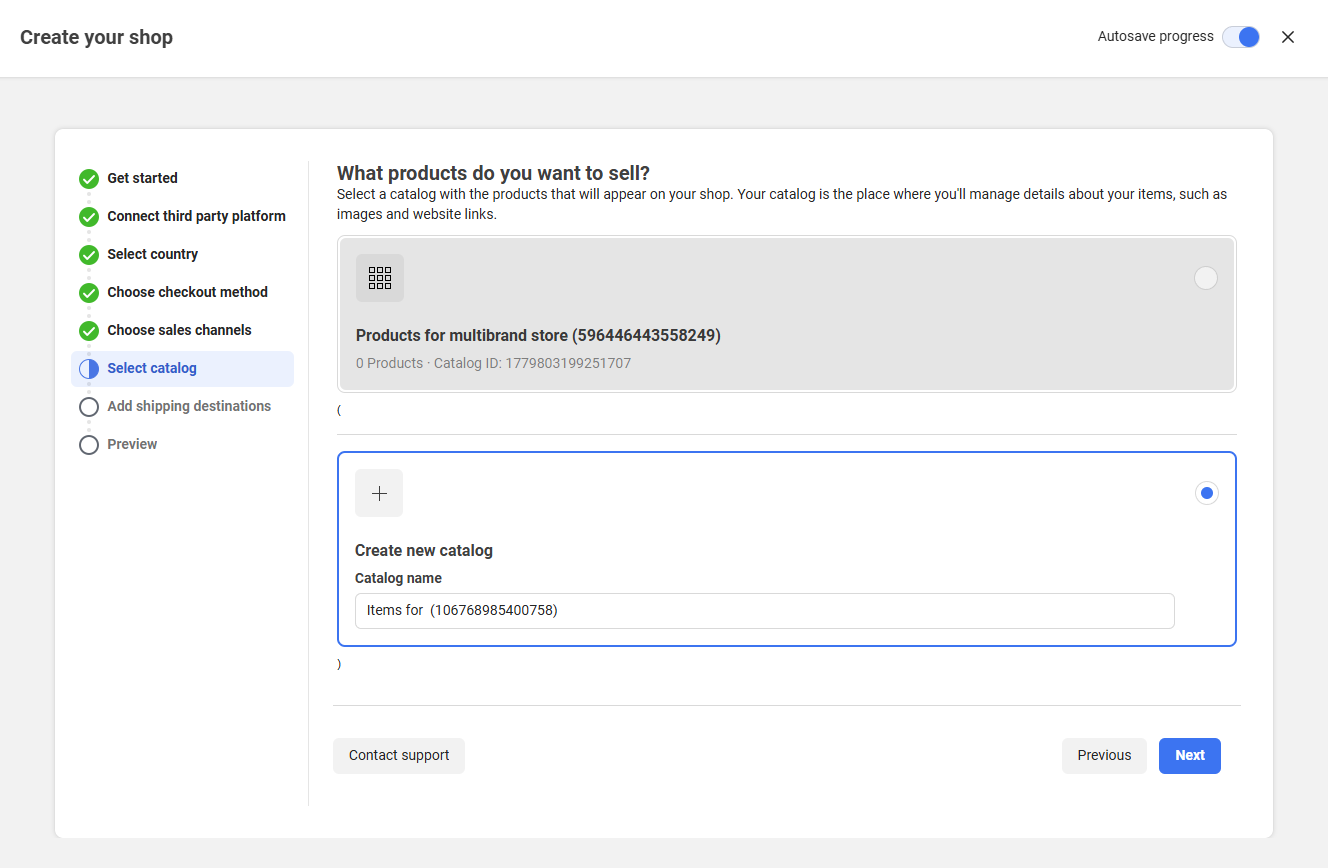
Select your existing catalog or create a new catalog that will appear on the Instagram shop
-
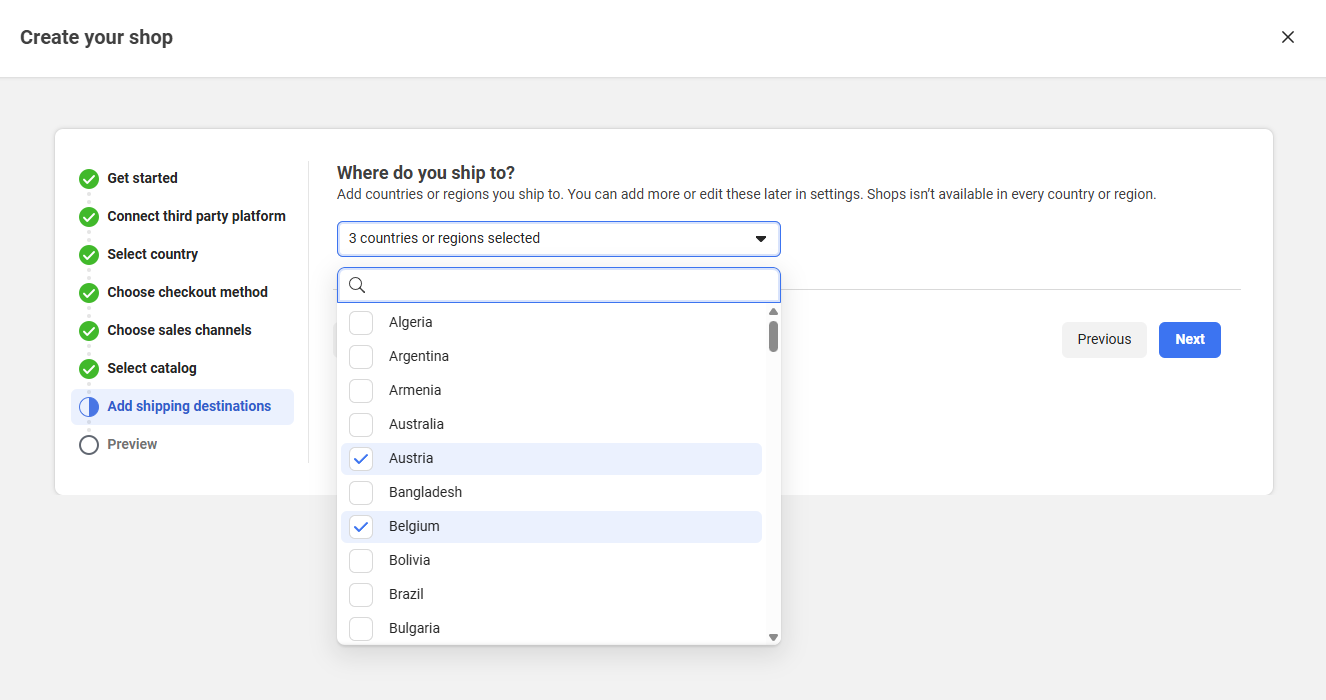
Choose one or more countries where you will ship your product to
-
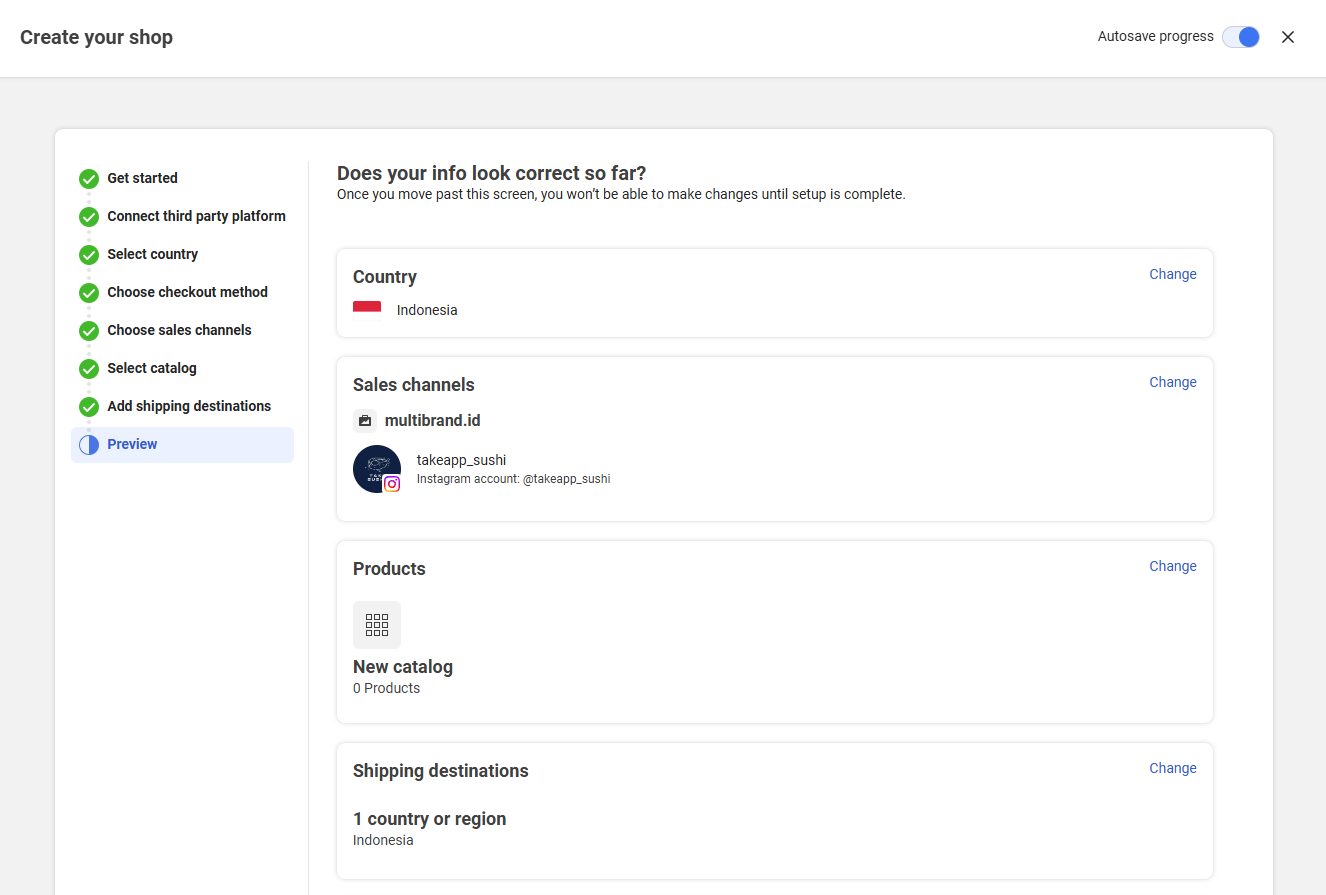
Check your store's configuration preview before its created. Then click "Finish Setup"
Add a catalog to your Instagram store by using Take App website
-
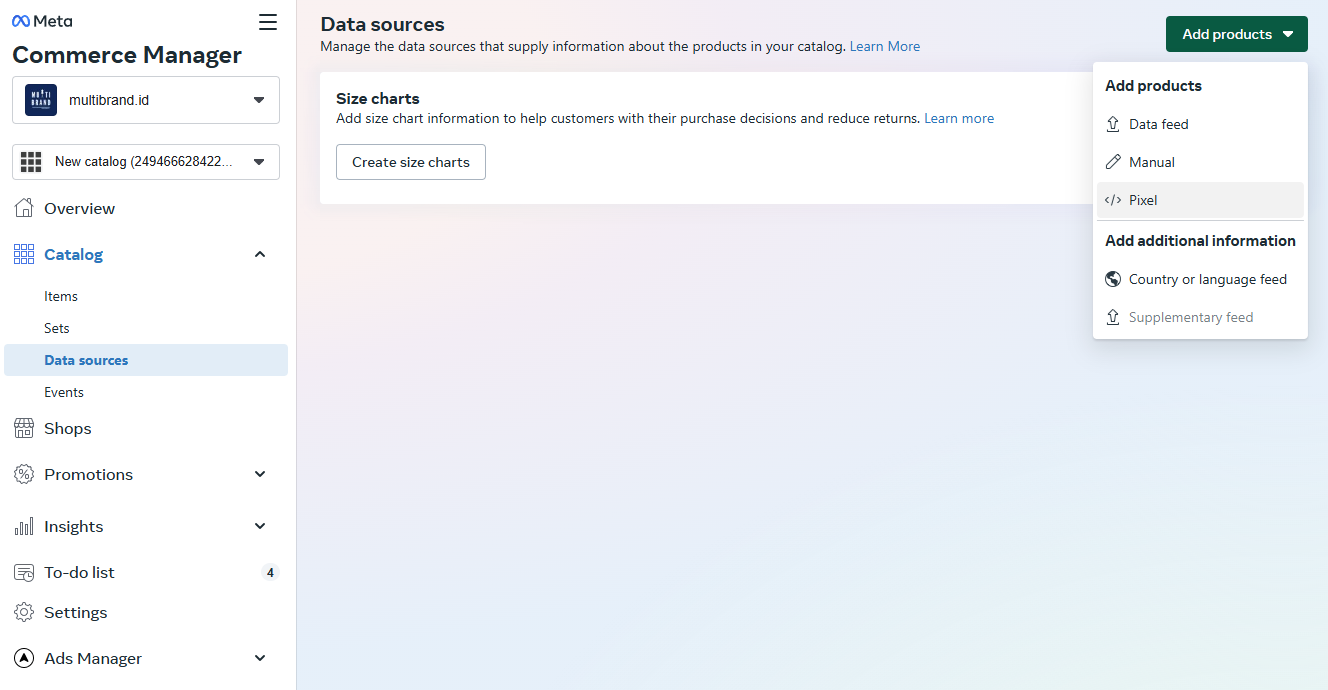
On Meta's Commerce Manager, go to Catalog > Data sources > click "Add product and choose "Pixel"
-
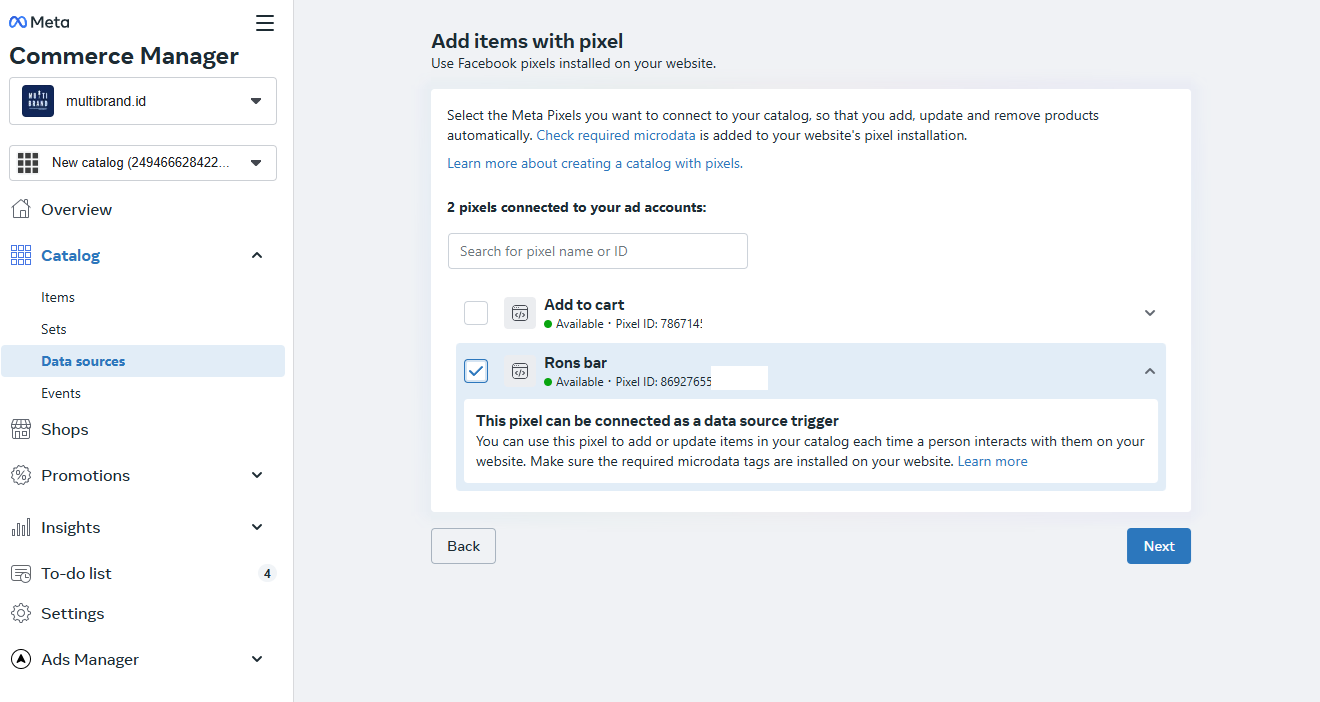
Choose the pixel ID that has been connected to your Take App store (learn how to add Meta Pixel ID in Take App)
-
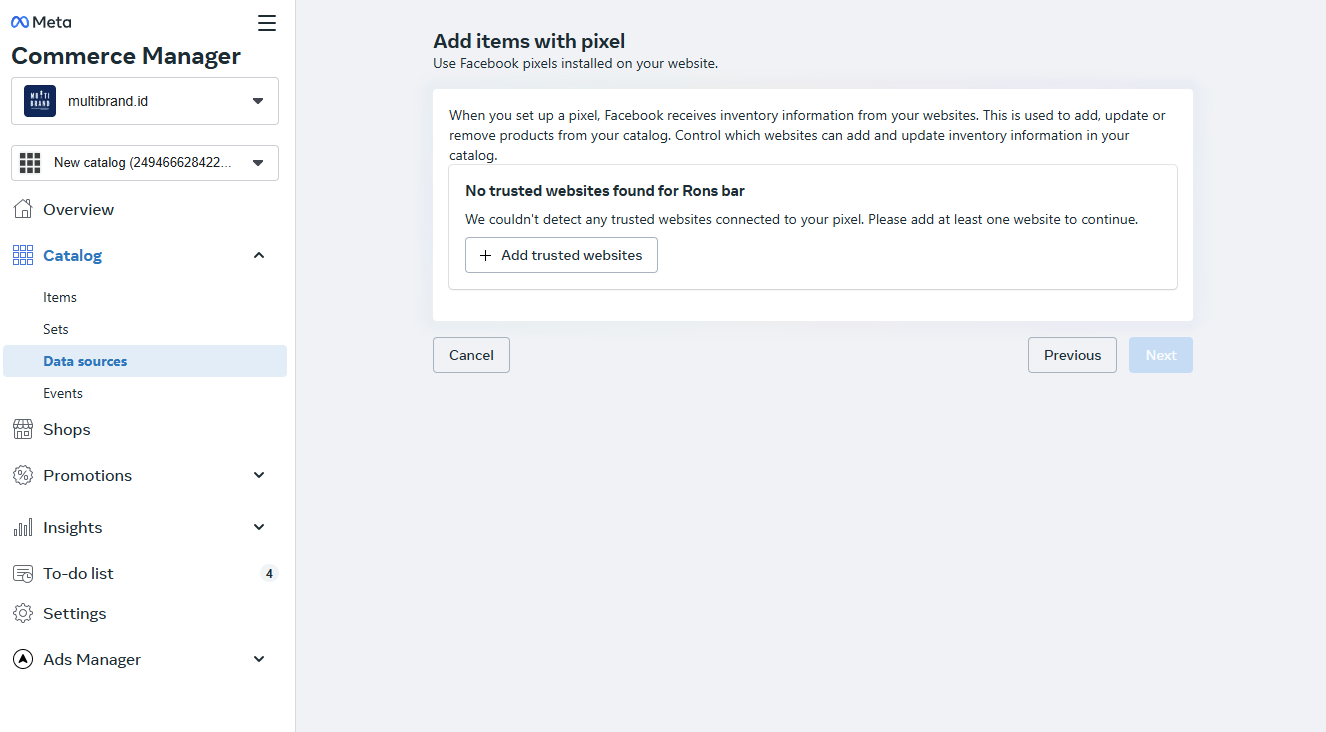
Click on "+ Add trusted website" and type in your Take App website domain
-
Wait up to 15 minutes for the item to be updated in your catalog.